Building a MCP server to connect your LinkedIn Account to any agent
For some reason LinkedIn doesn’t have connector to LLMs so I built one for my self with 5 prompts
I built a small MCP server to connect to the LinkedIn Ads API.
LinkedIn doesn’t natively connect to every agent, which still surprises me. So, to give my agents access to LinkedIn Ads data, that’s what you have to do.
I’m not a fan of handing an LLM one massive prompt and letting it build everything at once. I prefer smaller steps. I don’t review every line of code, but I still want to understand what each part does, what access it needs, and how we know it works.
This is the balance that worked for me:
- Scaffold the server and configuration.
- Implement LinkedIn authorization.
- Build the shared LinkedIn API client.
- Add the tools I need.
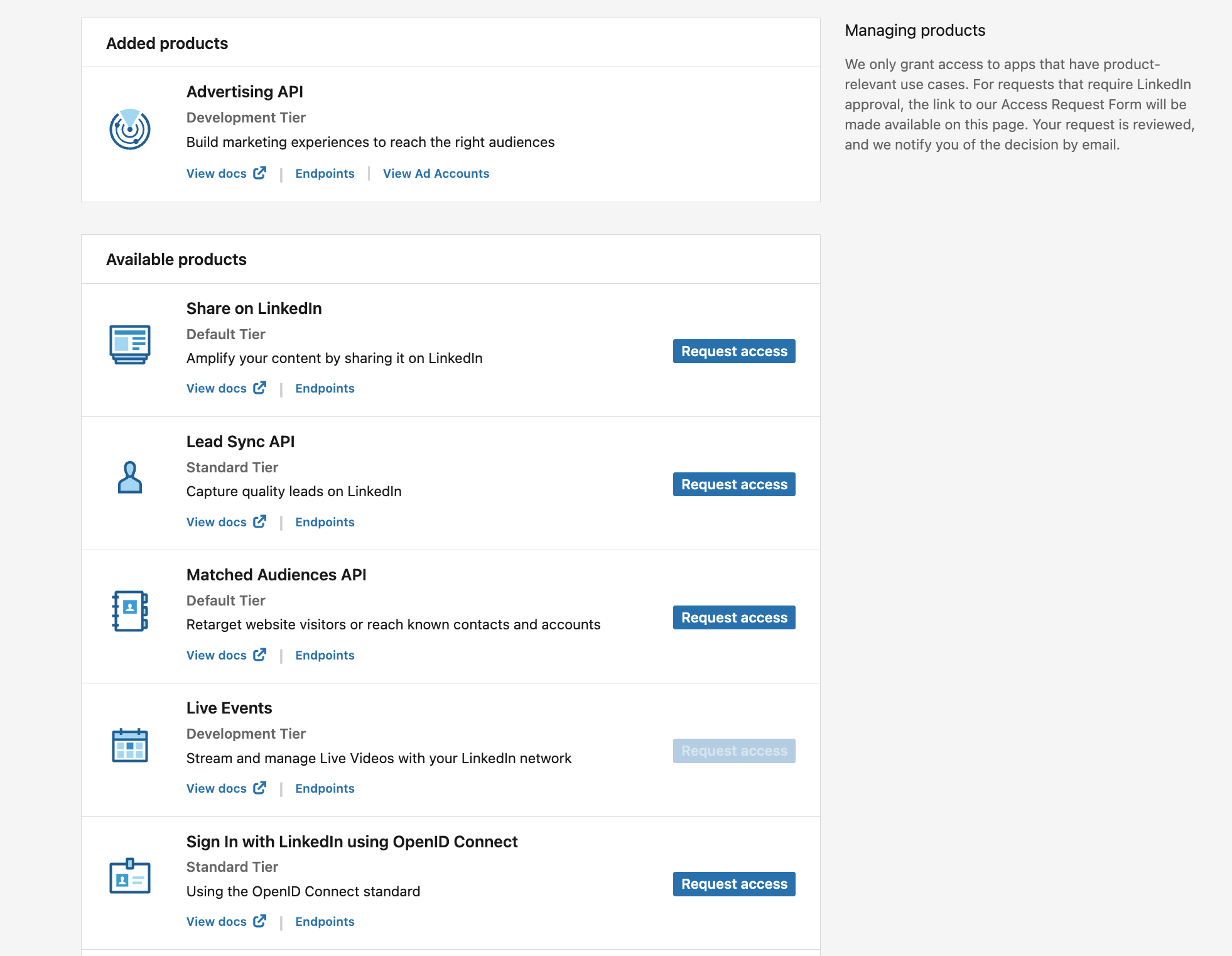
Before building, there’s some setup to do in LinkedIn’s Developer Portal. You need an app, its client ID and client secret, and access to the relevant API products. This is more than just obtaining an API key: the permissions attached to your app determine what you can do. Allow time for any approvals, and don’t assume every product will be available immediately.
Step 1: Scaffolding the MCP
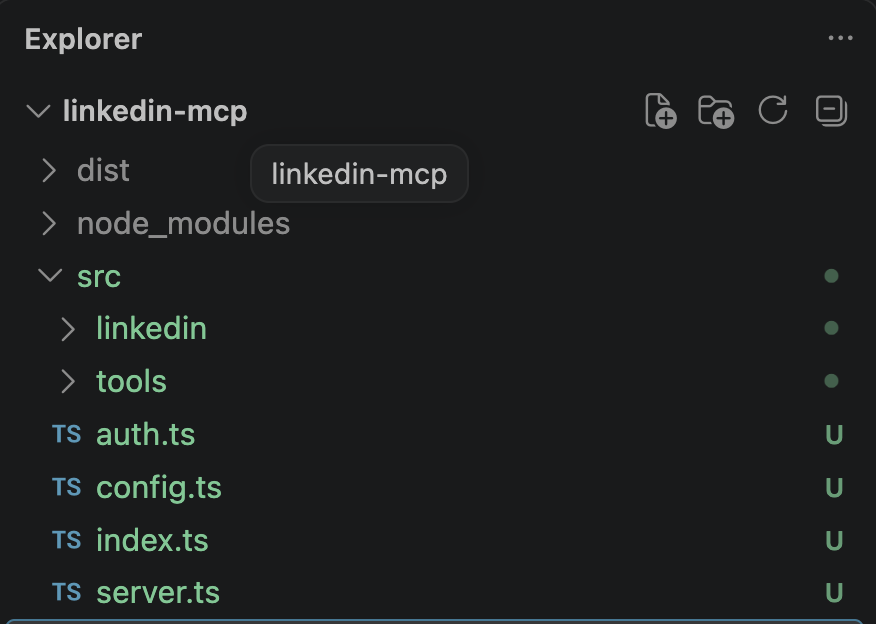
I started by asking Codex to create the scaffolding. What I wanted to obtain was simply a server that the agent could communicate with. It didn’t need to retrieve LinkedIn data yet. I followed Claude’s suggestion to “get the basic structure first before introducing authentication and external requests.” My guy is an engineer 🤣
My prompt, after a few iterations, became this:
Build the scaffolding for a local LinkedIn MCP server. Use TypeScript and keep the structure simple. Add configuration examples, setup instructions, and a test that confirms an MCP client can connect. Keep secrets out of Git. Don’t add LinkedIn API calls yet.
Just like that, the server started, the assistant could connect, and the connection test passed.
Step 2: Give it permission to access LinkedIn
The next step was setting up OAuth to sign in to LinkedIn and authorize the application. For this, you need to create an app in your LinkedIn Developer account, which is pretty straightforward.
Your agent shouldn’t need your LinkedIn password. You sign in through LinkedIn itself, and the application receives a token it can use for permitted requests.
My prompt to build this part was:
Add LinkedIn OAuth login to this server. Let me enter my app credentials locally, sign in through LinkedIn, and check the connection status afterward. Store tokens securely, never show them in tool responses or logs, and explain how expiry and re-authorization work. Test the failure cases too.
This is where things went wrong the first time.
The example configuration requested openid profile, but my LinkedIn app had a different set of permissions. The login failed because the requested permissions didn’t match the access granted to the app.
These permission names are called scopes. Don’t copy them blindly from an example. Use the ones your application actually has and the ones your tools need.
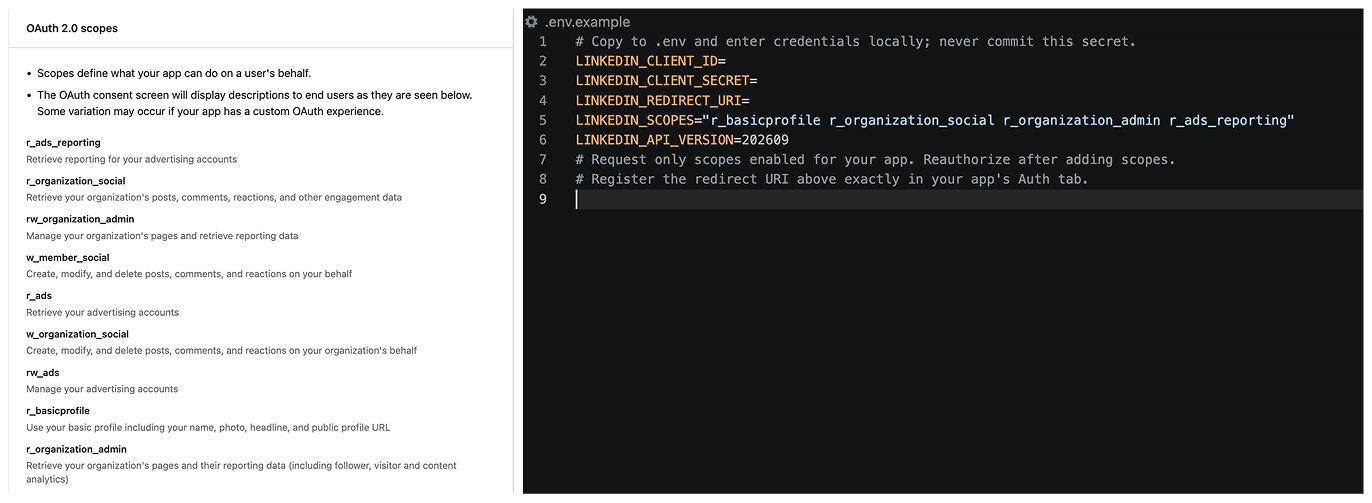
If everything works correctly when you run this command: npm run auth:login and log in you should get a success message
Step 3: Build the shared connection to LinkedIn
Now we got the scaffolding and every tool needs to do some of the same work: load the token, send an authenticated request, and handle errors.
Rather than repeat that logic in every tool, this is build in one shared API client which is the part that actually talks to LinkedIn.
Here is my prompt:
Build a shared LinkedIn API client using our saved authorization. Keep it read-only for now. Handle expired tokens, missing permissions, rate limits, and request timeouts with clear messages. Add tests, and don’t expose credentials in errors or logs.
Now we have
- The API client makes requests to LinkedIn.
- The MCP server exposes those capabilities as tools an assistant can discover and call.
You can use the API client without MCP,for example, in a script.
Step 4: Add tools 🛠️
To check if this works I just asked the LLM to list the pages I have access to I just asked to to list the account I have access to. And it wooorkkssss. So now basically I can add any tool I want. I’m not the last report I built is the one I spoke about in my last post and to be honest I don’t know what to build next. But I’ll go through each one of the endpoint and see what could be next.
Looking for some inspiration here so if someone has any Ideas please send me DM on LinkedIn